Need additional help?
For detailed step-by-step instructions, troubleshooting tips, and additional resources, visit our help center.
Visit Help CenterOverview
This guide will walk you through integrating Infini Reach with GoHighLevel (GHL). You'll learn how to:
- Access the integrations section in Infini Reach
- Add and configure GHL subaccounts
- Set "SMS Gateway" as your conversation provider in GoHighLevel settings
- Configure webhooks and test the integration
Time required: 10-15 minutes
Prerequisites: Infini Reach account, GoHighLevel account with admin access, At least one active device
Access the Integrations Section
Navigate to integrations in your Infini Reach dashboard
Log in to your Infini Reach dashboard and navigate to the integrations section:
Log in to Infini Reach dashboard
Go to your Infini Reach web dashboard URL
Click on "Integrations" in the sidebar
Find the integrations menu item in the left navigation
Select "GoHighLevel"
Choose GHL from the list of available integrations
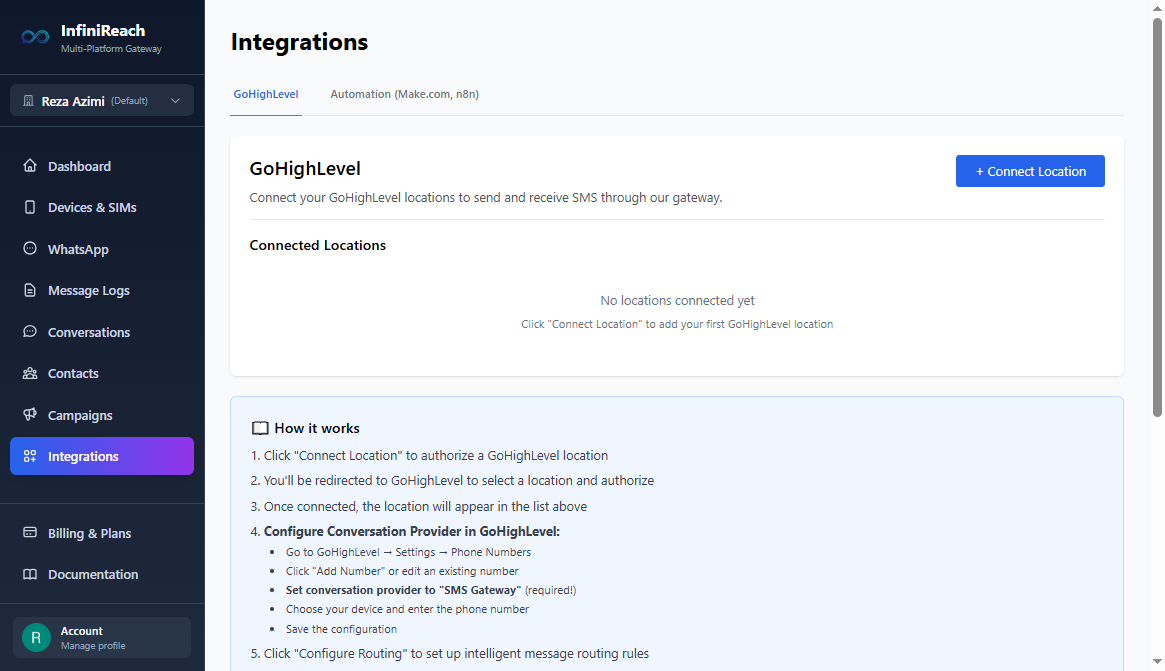
💡 Note: If you don't see the Integrations menu, make sure you have the appropriate subscription plan that includes GHL integration features.
Add a GoHighLevel Subaccount
Connect your GHL subaccount to Infini Reach
Each GHL subaccount needs to be connected individually to Infini Reach:
Add Subaccount Steps:
Click "Add Location" button
Located in the GoHighLevel integration section
You'll be redirected to GoHighLevel OAuth
Authorize SMS Gateway app to access your GHL account
Select "SMS Gateway" as conversation provider
Tick/select the SMS Gateway option in the conversation provider selection
Select the subaccount
Choose which GHL subaccount to connect
Click "Authorize"
Grant SMS Gateway app the required permissions
You'll be redirected back to Infini Reach
The subaccount will now appear in your integrations list
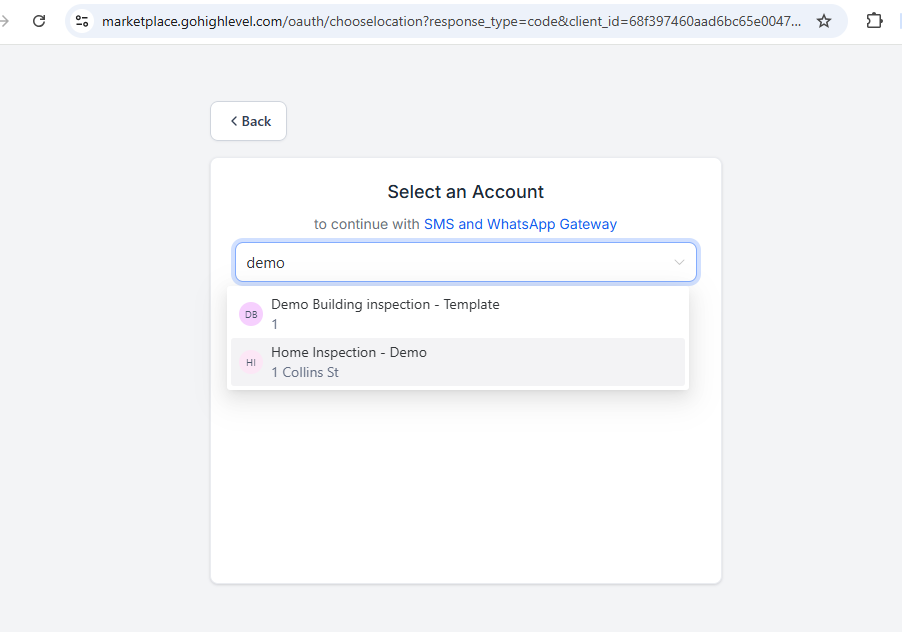
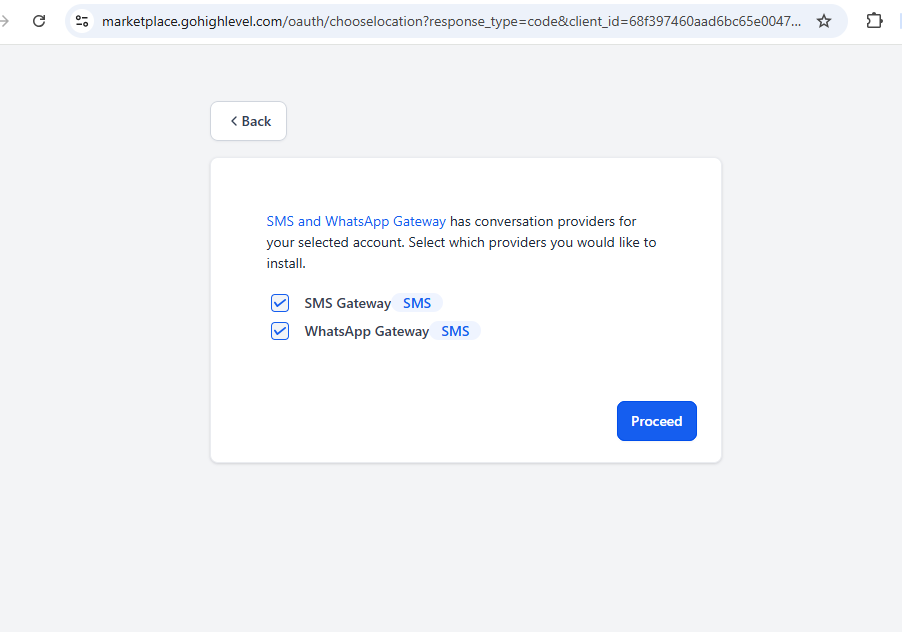
⚠️ Important: You must have admin access to the GHL subaccount to authorize the connection. Contact your GHL administrator if you don't have sufficient permissions.
Select Telephony Provider in GoHighLevel
Configure SMS Gateway as your Telephony Provider
⚠️ Important: Telephony Provider Setting Required
Before proceeding, you must set your Telephony Provider to "SMS Gateway" in your GoHighLevel settings. This is a critical step that must be completed in your GHL subaccount settings before you can send or receive messages.
Now you need to select "SMS Gateway" as your Telephony Provider in your GHL subaccount settings.
Configuration Steps:
Log in to GoHighLevel
Access the subaccount you just connected
Go to Settings → Phone System → Additional Settings
Navigate to the Additional Settings section
Select "Telephony Provider"
Choose "SMS Gateway" as your Telephony Provider
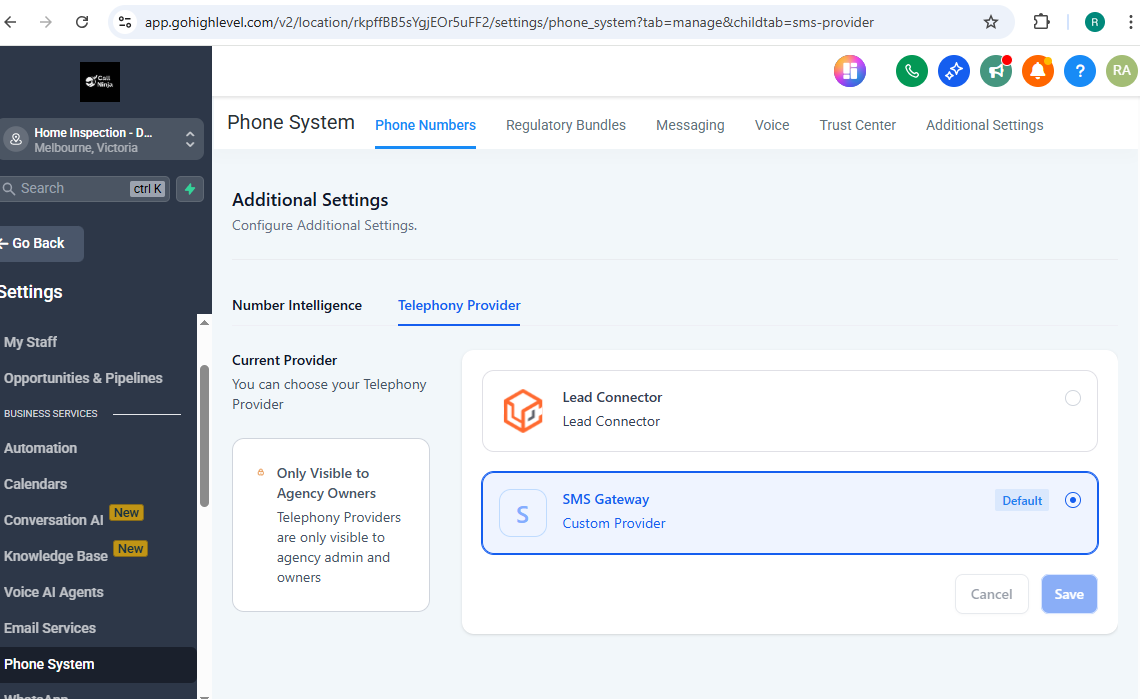
ℹ️ Note: You can choose your Telephony Provider. Telephony Providers are only visible to agency admin. If you are not an agency owner, please contact your agency admin to set that for you.
Setup Routing
Configure default routing and smart routing options
After the app is installed, you need to configure routing settings to determine how messages are handled.
Configuration Steps:
Go back to Integrations page in Infini Reach
Navigate to the Integrations section in your dashboard
Find the Routing option
Look for routing settings in the GoHighLevel integration section
Set Default Routing
Select either "SMS" or "WhatsApp" as your default routing option
Configure Smart Routing (Optional)
Set up different routing rules per country code if needed (e.g., use WhatsApp for certain countries, SMS for others)


Link Device to Location
Ensure your device is properly linked to the GHL location
Verify that your device is correctly linked to the GoHighLevel location to ensure messages flow correctly.
Verification Steps:
Go to Devices page in Infini Reach
Navigate to the Devices section in your dashboard
Check device details
Select your device and verify the location assignment
Verify Location Link
Make sure the device is linked to the correct GoHighLevel location

💡 Important: Each device must be linked to the correct location for messages to route properly. If the device is not linked correctly, messages may not be delivered.
Troubleshooting
Common issues and solutions
❌ Messages not sending from GHL
- • Check smart routing setup for outbound messages
- • Verify the device is online in Infini Reach dashboard
- • Check message log for any errors or delivery failures
- • Ensure the device is linked to the correct location
- • Verify the device has cellular/WiFi connection
⚠️ Inbound messages not appearing in GHL
- • Check that the device is linked to the location correctly on the device page
- • Verify the device is online and receiving messages
- • Check message log for any processing errors
- • Ensure the routing settings are configured correctly
🎉 Integration Complete!
Your GoHighLevel subaccount is now connected to Infini Reach
You can now send and receive SMS and WhatsApp messages through GoHighLevel using your Infini Reach devices. All conversations will sync in real-time.